 English
 Deutsch
 Polski
LukyDeluxe Audio Lab
GesturePrint
A free effect that captures volume and brightness gestures and applies them to a different sound.
How it works
A rhythmic performance often contains the movement another track is missing. GesturePrint captures the amplitude and relative brightness of a reference signal over one, two or four bars. It then applies those curves to a different input: a sustained pad can take on the accents of a percussion loop, or a bass can follow the dynamics of your own performance.
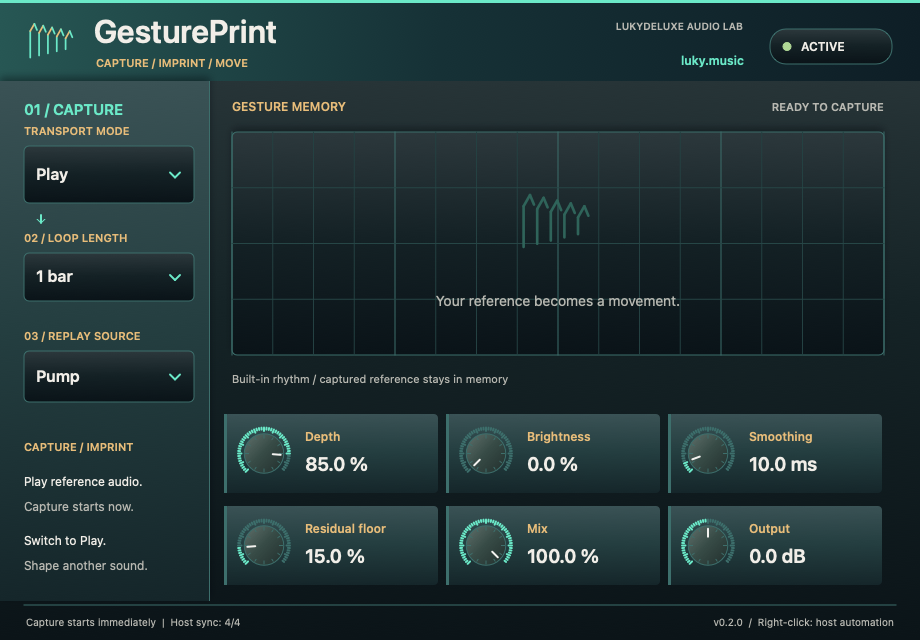
Depth sets the dynamic effect, Brightness the filter movement, and Smoothing the transitions. Floor retains an adjustable minimum level, while Mix blends processed and original signals. Pump, TranceGate and Syncopated provide starting patterns alongside your captured curve. The captured curves and their phase are included in plugin state so that the movement can stay with the project. A large canvas displays the recorded amplitude curve. Capture, loop length and replay sit on the left, with six compact dials in two rows. Coordinated mint gradients connect the areas.
Features
- Amplitude and relative-brightness capture with 512 curve points
- 1-, 2- or 4-bar loops on a fixed 4/4 grid
- Capture once, Play and Thru, plus three preset rhythm patterns
- Depth, Brightness, Smoothing, Floor, Mix and Output
- Tempo-synchronized playback and optional MIDI-note retrigger
- Captured curves and phase included in plugin state
- Native macOS editor with parameter automation and host context menus
- A large canvas displays the recorded amplitude curve. Capture, loop length and replay sit on the left, with six compact dials in two rows. Coordinated mint gradients connect the areas.
Ways to use it
- Transfer percussion accents to sustained pads and basses
- Create pump and gate movements from your own performance
- Repeat dynamic and filter gestures in EDM and sound design
Try it
- Select 1, 2 or 4 bars and start playing the reference at the desired tempo.
- Select the captured pattern and start Capture once: recording begins immediately, even with transport stopped.
- Playback starts automatically when capture finishes; replace the input source with the target sound.
- Adjust Depth, Brightness, Smoothing, Floor and Mix, then save the project.
Controls
Capture · Play · Length · Depth · Brightness · Smoothing · Floor · Mix · Output
Compatibility and notes
Capture does not wait for the next bar. GesturePrint transfers amplitude and relative brightness movement, not pitch, melody or a complete timbre. Synchronization assumes 4/4. Silent or interrupted capture does not overwrite a previously valid curve. Early Access by LukyDeluxe Audio Lab, version 0.2.0 as VST3 for Windows x64 and macOS Universal (arm64/x86_64). The Mac edition is not notarized. No AU or standalone application. Broad DAW, GUI and long-session compatibility is still being developed. All sound parameters support DAW automation. Right-click opens the host-supplied parameter menu where the host supports this feature.
Windows x64 and macOS Universal (Apple Silicon/Intel). The Mac edition is not notarized. Intel runtime testing is not documented; follow the host and installation notes for the individual download.
All sound knobs, switches and selection parameters support host automation. Right-click a parameter to open its menu where your DAW provides one.
Install
- Choose the ZIP for your operating system and extract it.
- Windows: copy the entire .vst3 bundle to C:\Program Files\Common Files\VST3.
- macOS: extract the ZIP and open the product .pkg in the Installer folder. Install for your current user. The Mac edition is not notarized; follow the Mac installation and security guide on this page.
- Linux x86_64: copy the complete .vst3 bundle from Plugin to ~/.vst3/ (create the directory if needed). The editor uses X11 via Cairo/XCB and requires a VST3 host with IRunLoop; Wayland requires XWayland and a compatible host. Native Wayland and Linux ARM64 are not supported. Built on Ubuntu 22.04; exact library requirements are in INSTALL.txt in the Linux ZIP. Checked in native test hosts/Xvfb and pluginval; not yet tested in a Linux DAW. Not every Linux host or distribution has been tested.
- Rescan plugins in your 64-bit VST3 host. Load instruments on a MIDI track and effects in an audio insert.
Download details
- Windows x64 · VST3
- LukyDeluxe-gestureprint-0.2.0-windows-x64-4be6195e9601.zip
- ZIP size
- 0.22 MiB
- SHA-256
- 4be6195e96017c51d4619211ac795f54c8c45649a8bff10d27081a25ff765670
- macOS Universal · VST3
- LukyDeluxe-gestureprint-0.2.0-macos-universal-f38ee1f9de88.zip
- ZIP size
- 0.10 MiB
- SHA-256
- f38ee1f9de88331c8a4f18498e00333e480be0d47b342bfdc518a35305425cec
- Linux x86_64 · VST3
- LukyDeluxe-gestureprint-0.2.0-linux-x86_64-180de889c61a.zip
- ZIP size
- 0.09 MiB
- SHA-256
- 180de889c61a10aede8d74834860150523200b4b144cd51da14d9f01f1e197e4
Mac installation, step by step
The Mac edition of GesturePrint is not notarized by Apple. Its ZIP contains an installer for this specific plugin. Load the installed VST3 in a 64-bit DAW that supports VST3; it is not a standalone app.
1. Extract the ZIP and open the installer
- Choose the macOS Universal ZIP. Quit your DAW and extract the complete ZIP in Finder.
- In the extracted Installer folder, open gestureprint.pkg for GesturePrint. Do not launch the .vst3 as an app.
- If macOS blocks the installer because of an unidentified developer or missing Apple checks, follow section 2. Then reopen that same .pkg file.
- In Installer, choose installation for your current user account or home folder and finish the installation. The plugin destination is shown below.
- Restart your DAW, rescan its VST3 plugins and load GesturePrint there. Instruments use a MIDI track; effects use an audio insert.
Installation destination for your Mac user account
~/Library/Audio/Plug-Ins/VST3/
2. If macOS blocks the installer
Consider this exception only if you downloaded the file yourself from luky.music and trust that specific file. It applies to the product .pkg, not the .vst3 bundle.
- First try to open gestureprint.pkg. Dismiss the unidentified-developer or missing-Apple-check alert, for example with Done; wording varies by macOS version.
- Open System Settings → Privacy & Security and scroll down to Security. Find the recently blocked entry with the actual filename of this product .pkg.
- If Open Anyway is offered for that exact installer, select it and confirm any further opening request. Approve any Mac password or Touch ID request yourself, only in the macOS system dialog.
- Reopen the same .pkg if Installer does not appear automatically. Install only for your current user. Then restart the DAW and rescan the plugin.
No matching entry, or a different warning?
If the entry for the recently blocked .pkg remains absent, contact our support or your IT administrator on a managed Mac. If approving the .vst3 bundle only opens Finder and the DAW remains blocked, the plugin has not been successfully approved; use the product installer. Do not use this procedure to dismiss warnings about malware or a damaged or modified file: stop installation and investigate. Filenames and checksums are listed under Download details.
Keep Gatekeeper enabled. This guide requires neither Terminal commands to remove quarantine nor blanket approval for other software.
Apple’s guidance for safely opening downloaded software ↗